
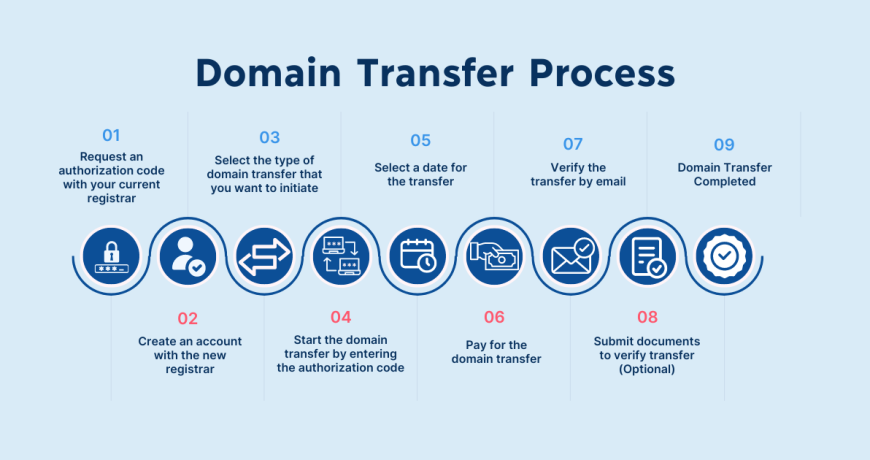
Transferring a domain name to a new registrar can seem daunting, but with the right steps it’s straightforward. Whether you’re switching to a registrar with better pricing, improved service, or integrated tools, moving your domain ensures you retain control and support that fits your needs. In this guide, you’ll learn what a domain transfer is, why you might want to do it, and how to complete the process without downtime or lost data.
What Is a Domain Transfer?
A domain transfer involves moving your domain registration from one registrar to another. A registrar is the company you pay to manage your domain name — for example, example.com. When you transfer, the domain’s ownership doesn’t change, but the registrar that manages renewals, DNS records, and billing does.
Common reasons for transferring include:

- Lower renewal fees or promotional pricing
- Better support or services
- Consolidating domains in one account
- Added security and management features
Before you start, make sure your domain is eligible for transfer.
Domain Transfer Eligibility Requirements
Before initiating a transfer, confirm your domain meets these conditions:
✔ Domain has been registered or transferred more than 60 days ago
Domain registries enforce a 60‑day lock after registration or recent transfer.
✔ Domain is not expired or in redemption
Expired domains may not transfer until renewal.
✔ Contact information is up to date
Ensure the email address linked to the domain is correct, as confirmation steps will be sent there.
Step 1: Prepare Your Domain for Transfer
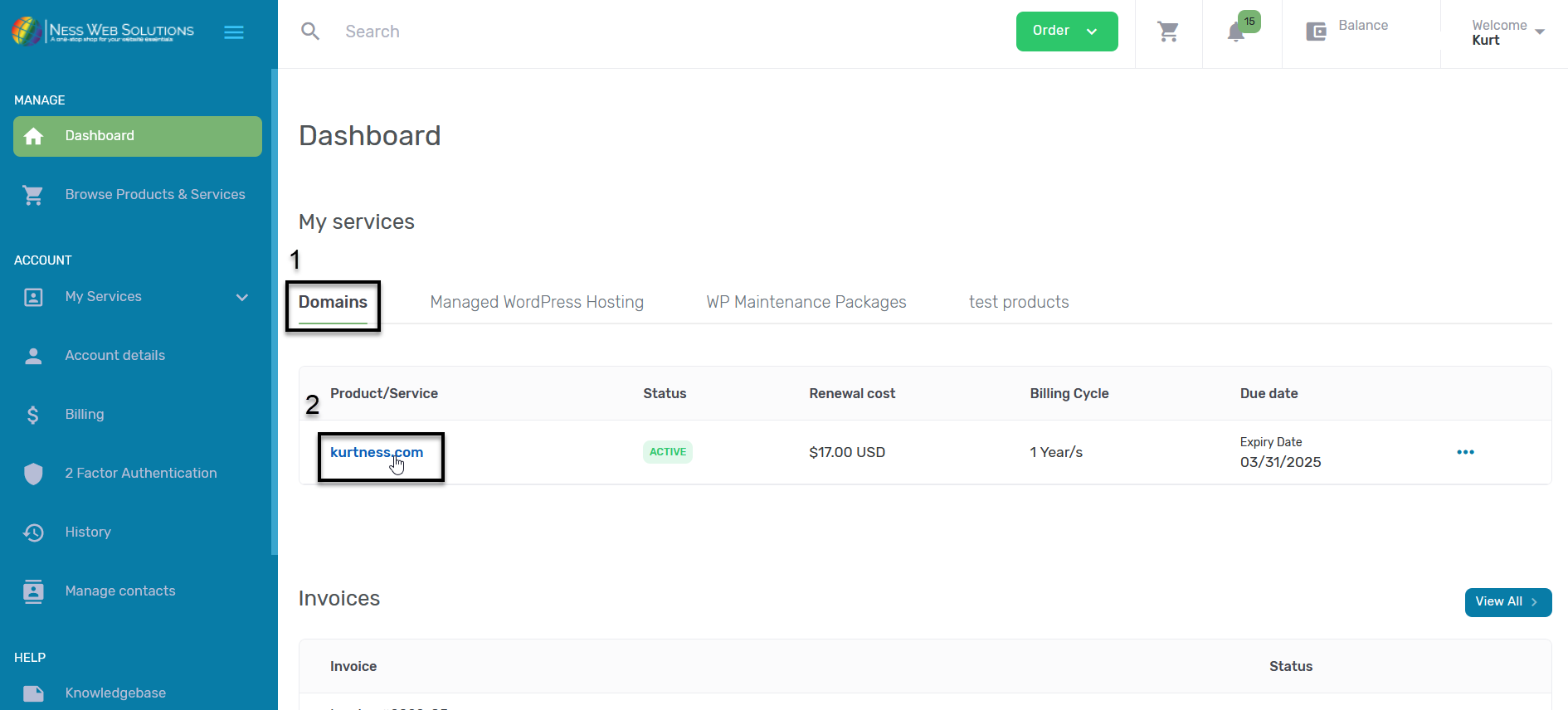
1. Unlock the Domain
Domains often have a transfer lock by default. Log in to your current registrar and turn off domain protection/lock — typically found in the domain settings.
2. Update Contact Information
Make sure the administrator email is correct. This is where transfer approval emails will be sent.
3. Get the Authorization Code
Also called an EPP key or transfer key, this code authorizes the transfer. Request it from your current registrar — often under “Transfer” or “Security” settings.
Step 2: Start the Transfer at the New Registrar
1. Choose Your New Registrar
Popular registrars include Namecheap, GoDaddy, Google Domains, and others. Choose one based on pricing, support, and tools.
2. Initiate the Transfer
In the new registrar’s dashboard, select “Transfer Domain” and enter your domain name.
3. Enter the Authorization Code
Paste the EPP/authorization code you obtained earlier.
4. Pay the Transfer Fee
Most registrars charge a transfer fee, which typically includes a 1‑year renewal.
Step 3: Approve the Transfer
After initiating the transfer, your current registrar will send a confirmation email to the domain’s admin address. This step verifies that you — the domain owner — approve moving the domain.
How to approve:
- Open the transfer confirmation email
- Click the approval link or follow the given instructions
- Confirm the transfer request
Once approved, the new registrar begins the transfer process.
Step 4: Wait for Completion
Domain transfers usually complete within 5–7 days, though many finish in less time. During this period:
- Your domain will keep resolving as normal
- DNS settings usually stay active unless you change them
You may receive status updates from both registrars during the process.
Verify DNS and Website Functionality
Once the transfer is complete, log in to your new registrar and check:
✔ DNS Settings
Ensure your DNS records (A, MX, CNAME, etc.) are correct so your website and email continue working.
✔ WHOIS Information
Confirm your contact information is accurate and updated.
✔ Auto‑Renewal Settings
Set auto‑renew to avoid losing your domain at expiration.
Common Transfer Issues and How to Fix Them
🚫 Transfer Denied or Locked
If your domain remains locked:
- Double‑check the lock status in your old registrar
- Confirm at least 60 days have passed since registration
📧 No Transfer Approval Email
If you don’t see the email:
- Check your spam/junk folder
- Ensure the admin email in WHOIS is correct
- Contact your old registrar to resend the approval
⏳ Transfer Taking Too Long
Occasionally, registrars delay transfers due to policy checks. Contact both registrars’ support to resolve delays.
What About Country‑Code Domains?
Some domain extensions (like .ke, .ug, or other country‑codes) may have extra requirements or different transfer rules. For example:
- Local presence or documentation
- Registry approval timelines
Always check specific requirements for your country‑code top‑level domain (ccTLD) before starting a transfer.
When Not to Transfer
There are situations where you might delay a transfer:
❗ Registrar Lock: If your domain is newly registered or recently transferred
❗ Pending Legal Disputes: If domain disputes are unresolved
❗ Critical Event: If your site or email is in the middle of a major campaign
In these cases, transfer delays risk disruptions.
Why Transfer Your Domain?
Transferring your domain can give you:
🌐 Lower Renewal Prices
🔐 Better Security Features
📊 Improved Support
🔁 Simplified Management (especially if consolidating domains)
A well‑executed domain transfer strengthens your control over your online presence.
Moving your domain to a new registrar in 2026 doesn’t have to be complicated. By unlocking your domain, obtaining the authorization code, initiating the transfer with your chosen registrar, and confirming the change via email, you can securely and smoothly complete the process. Always double‑check DNS settings afterward to ensure your website and email run without interruption.
Whether you’re seeking lower costs, better support, or more control, understanding how to transfer your domain to a new registrar empowers you to manage your online assets with confidence.